 Postmedia.
Save what
you see.
Images, videos and captions from social posts, collected in your browser.
Chrome, Helium and Firefox on desktop · Manual installation
Download links by email
Make room for the good stuff.
Open a post. Pick the media you want. Save a single file or a ZIP with everything together.
- Images and available videos
- Captions when available
- Quality choices for supported videos
- Progress and recent downloads
On your computer.
Postmedia has no telemetry or tracking. Files are prepared in your browser.
Have an idea? me@capy.gg or @capy_gg.
Get set up.
Install Postmedia manually before using it. It takes a few minutes.
Choose your browser if it is not selected.
- Download the ZIP from your email. Double-click it to extract the folder.
- In Chrome, paste
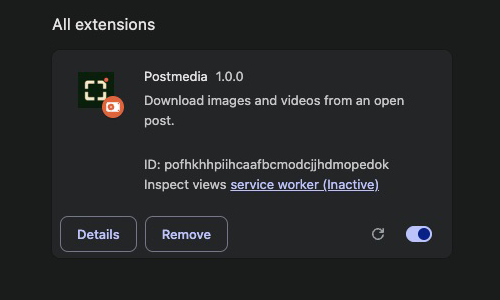
chrome://extensionsinto the address bar and press Enter. - Turn on Developer mode. Select Load unpacked.
- Choose the extracted folder containing
manifest.json. Keep that folder in place. - Open the extensions menu and pin Postmedia. Select its icon to start.
- Download the ZIP from your email. Double-click it to extract the folder.
- In Helium, paste
chrome://extensionsinto the address bar and press Enter. - Turn on Developer mode. Select Load unpacked.
- Choose the extracted folder containing
manifest.json. Keep that folder in place. - Open the extensions menu and pin Postmedia. Select its icon to start.
- Download the ZIP from your email and extract it.
- In Edge, paste
edge://extensionsinto the address bar and press Enter. - Turn on Developer mode. Select Load unpacked.
- Choose the extracted folder containing
manifest.json. Keep that folder in place. - Open the extensions menu and select Postmedia.
Edge has not yet been tested with this build.
- Open your purchase email and select the Firefox download.
- Open the downloaded
.xpifile in Firefox. - Select Add to install Postmedia.
- Open the extensions menu and select Postmedia to open its sidebar.
To update, install the latest signed Firefox file from your download link.
Other Chromium browsers may support unpacked extensions. Open your browser’s extensions page and follow the Chrome steps. Compatibility has not been tested. Safari and mobile browsers are not supported.

Why manual? Google lists YouTube downloaders among common reasons for Chrome Web Store rejection. Read Google’s guidance.
Good to know.
Where do my files go?
Your browser asks where to save them. Open the Downloads view to find them again.
Does every post work?
No. Availability depends on the site, the post and the media format.
How do I install it?
Follow the installation guide for your browser.